Dynamic links
Create a short link, customise its alias and change its destination. Learn how to add campaign parameters and test routing in ti-ny.link.
Last reviewed:
What is a dynamic link?
A dynamic link is a short URL whose destination you can change after sharing it. Use the same public address for a launch, offer or campaign, then update where it leads as your content changes.
For product capabilities and examples, explore Dynamic links.
Create your first short link
- Sign in to ti-ny.link. In the Dashboard, choose Create link → Shortened URL.
- Enter your destination in Long URL.
- Enter an available alias in Short URL, or leave it empty for a generated one. Choose Shorten URL.
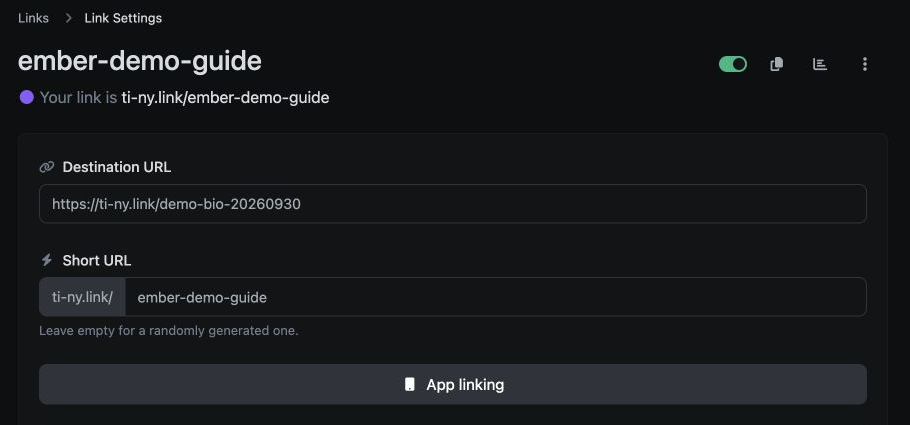
- The link settings page opens. Further changes use Destination URL, Short URL and the Update button.
- Before sharing a link whose destination will change, review HTTP Status as described below. Open the public short link and confirm its destination.
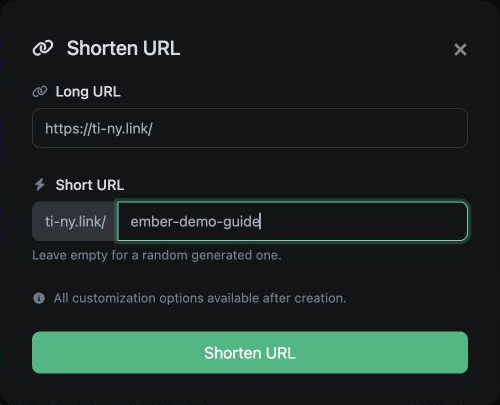
A custom alias is the part after the domain, such as launch in ti-ny.link/launch. Using your own domain is a separate feature available on eligible plans; follow the custom-domain guide.
Change the destination after sharing
Edit the destination URL in the link’s settings, save it and test the public link again. Keep the alias unchanged when you want previously shared links to keep working.
This is also the basis of an editable QR campaign: the printed code opens the short link, and you update the destination behind that stable address.
Choose a redirect status for changing destinations
Use 301 Permanent redirect for a permanent destination. Browsers can cache this redirect and continue to open an earlier destination after you update the link.
For a menu, launch or campaign that you expect to change, open HTTP Status, select 302 Temporary redirect and choose Update before first sharing the URL.
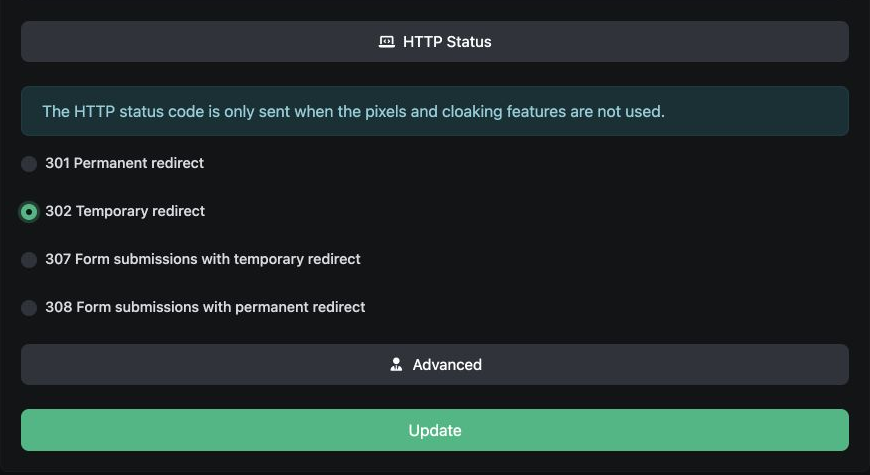
Changing from 301 to 302 does not clear a permanent redirect already cached by a visitor. If an old destination persists, test in a fresh browser session and review the browser troubleshooting guide. Keep the alias unchanged when updating the destination.
The HTTP Status menu also offers 307 and 308 for redirecting form submissions. The selected HTTP status is only sent when pixels and cloaking are not used. Test the complete configuration you intend to share.
Add campaign context
Open UTM Parameters in the link settings. Complete Source, Medium and Campaign, review the UTM preview and choose Update. These values are appended to the destination URL; verify them in the final browser address and in your destination analytics tool.
The separate Advanced → Forward query parameters option controls whether parameters supplied on the incoming short URL are also forwarded. Test for duplicate or conflicting parameters if you combine these options.
Create separate short links for different placements when you need to compare their activity. For example, use one for an email and another for a poster. Read the Analytics guide to interpret visits and available referral information.
Configure optional link controls
Availability and limits depend on your plan. Check the controls shown in your account before building a campaign around them.
| Control | What to check |
|---|---|
| Mobile app opening | Use a supported destination format and test the installed-app and browser journeys. See the app-link guide. |
| Audience targeting | The Targeting type menu includes continent, country, city, device type, operating system, browser, browser language, and Rotation & A/B Testing. Check every configured route and the default destination. |
| Scheduling and expiration | Temporary URL contains Schedule, Clicks limit and Expiration URL. The expiration URL is the destination used after the main link expires; test your chosen setup. |
| Password protection | Open Protection to set a password or sensitive-content warning. Test the visitor experience before sharing. |
| A/B rotation | Test each destination. Rotation alone does not establish which version converts better; define and measure the outcome separately. |
| Tracking pixels | Follow the pixel guide and verify the events in your provider’s tools. |
App opening depends on the destination, device, installed app and browser. Link statistics describe recorded activity; they do not confirm every app opening, download or purchase.