QR codes
Connect a QR code to a dynamic short link, customise its design and scan-test the export. Learn how to change destinations after printing.
Last reviewed:
Choose a static or dynamic QR code
A static QR code stores its destination or other information directly in the code. That encoded content cannot change after printing.
A dynamic QR code connected to a ti-ny.link short link keeps the same encoded address while you edit the destination behind that link. Use this approach for menus, packaging, posters and other materials that need to remain useful when content changes.
Explore QR codes for the product overview, or follow the editable QR campaign example.
Create a dynamic QR code
- Create a short link to the page you want to share. For changing campaigns, set HTTP Status → 302 Temporary redirect before first sharing it and test the destination.
- Open QR codes → Create QR and choose the URL type.
- Give the code a recognisable Name and enable Dynamic QR code.
- Enable Select from pre-existing links, then choose your link in the URL selector.
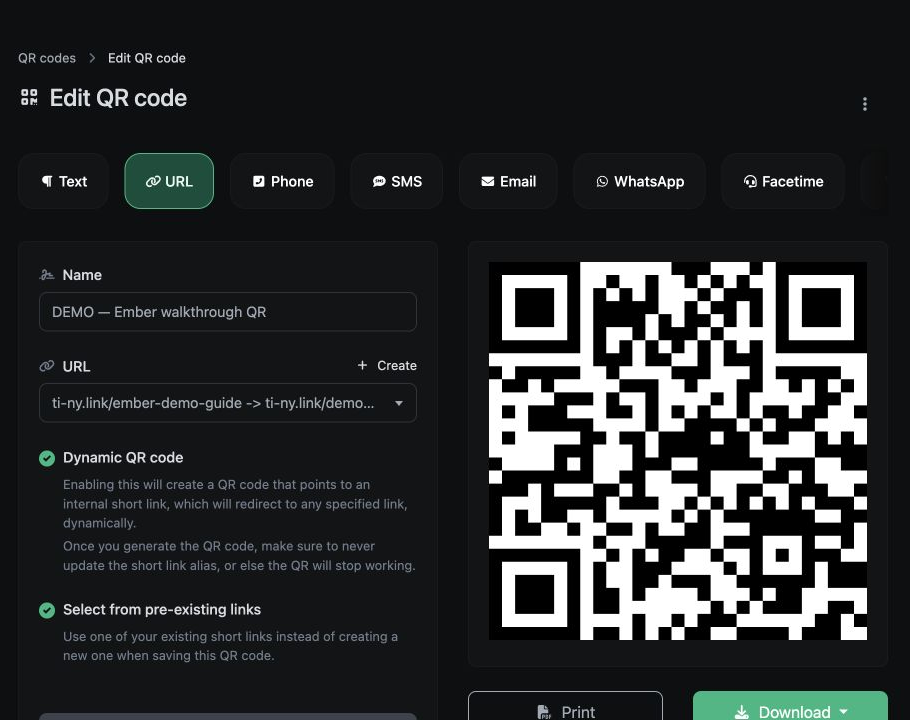
Customize and save the code
- Use the available Style, Colors, Frame, Branding and Options controls. Keep the code clear against its background.
- Choose Create. On the saved QR page, Embedded data shows the address encoded in the QR; confirm that it is the link you intend to retain.
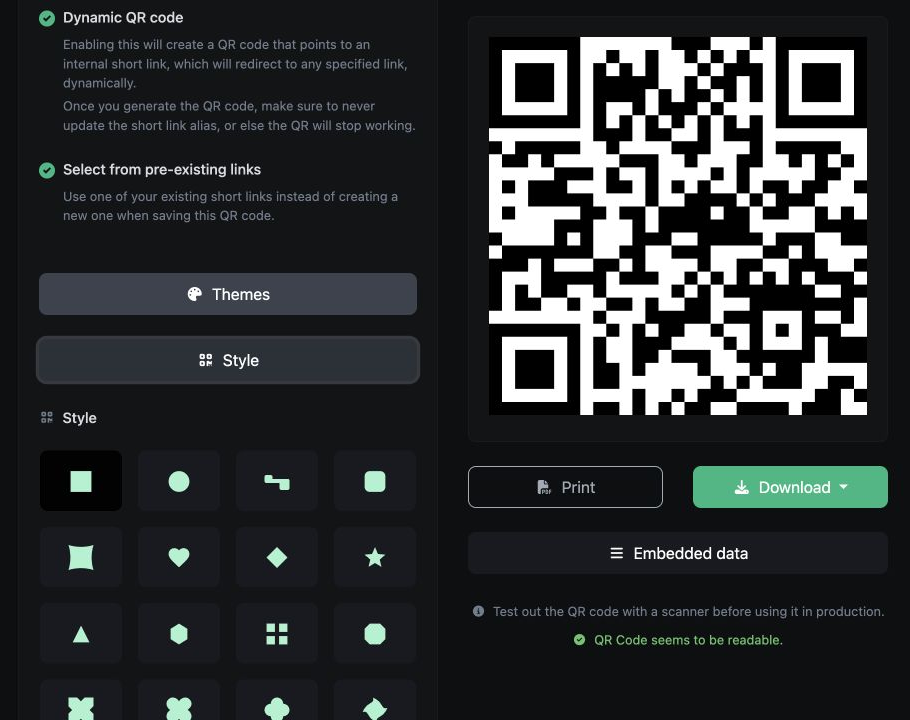
Download the artwork
- Open Download. The menu offers SVG, PNG, JPG and WEBP. Scan the exported file on a real phone before printing.
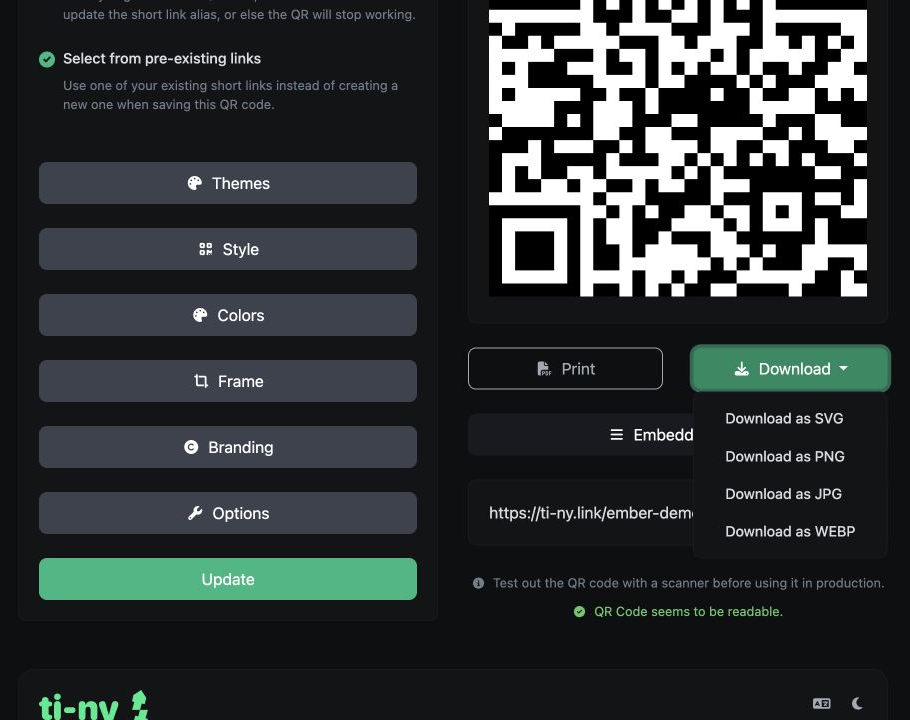
You can also leave Select from pre-existing links off and enter a destination URL. In dynamic mode, ti-ny.link creates an internal short link when you save the QR code. The workflow above uses an existing link so you can configure and test that link first.
The Free plan allows 5 QR codes and 0 bulk QR codes. Other plans have different quantities and bulk allowances. Check the current limits before planning a rollout.
Update the destination after printing
Open the connected short link’s settings and change its destination URL. Choose Update, then scan the original QR code again. A previously cached 301 redirect can still take a returning browser to the old destination; see the redirect-status guidance.
Keep the short-link alias unchanged. The printed QR code points to that address. Changing or deleting it can break the route, even if the QR artwork looks the same.
Check the final printed result
- Test the code at its final print size, with clear space around it.
- Scan with the devices your audience is likely to use.
- Check that the destination works on mobile and is accessible to your visitors.
- Retest after changing the destination or adding targeting rules.
- For an app-aware link, test the browser route as well as the app journey.
Understand QR activity
Use a separate dynamic link for each placement if you want to compare a counter card, poster and product label. Open each link’s statistics and compare the same time period.
Recorded link activity does not represent every camera scan: a person may scan without opening the URL. If you share the same short link elsewhere, its activity can include those visits too. Read the Analytics guide before interpreting the totals.