QR codes that keep up.
Bring packaging, posters, menus and events online. Customize a QR code with colors and branding, then connect it to a dynamic link so the destination can change.
Get started free ↗Read the QR-code setup guide →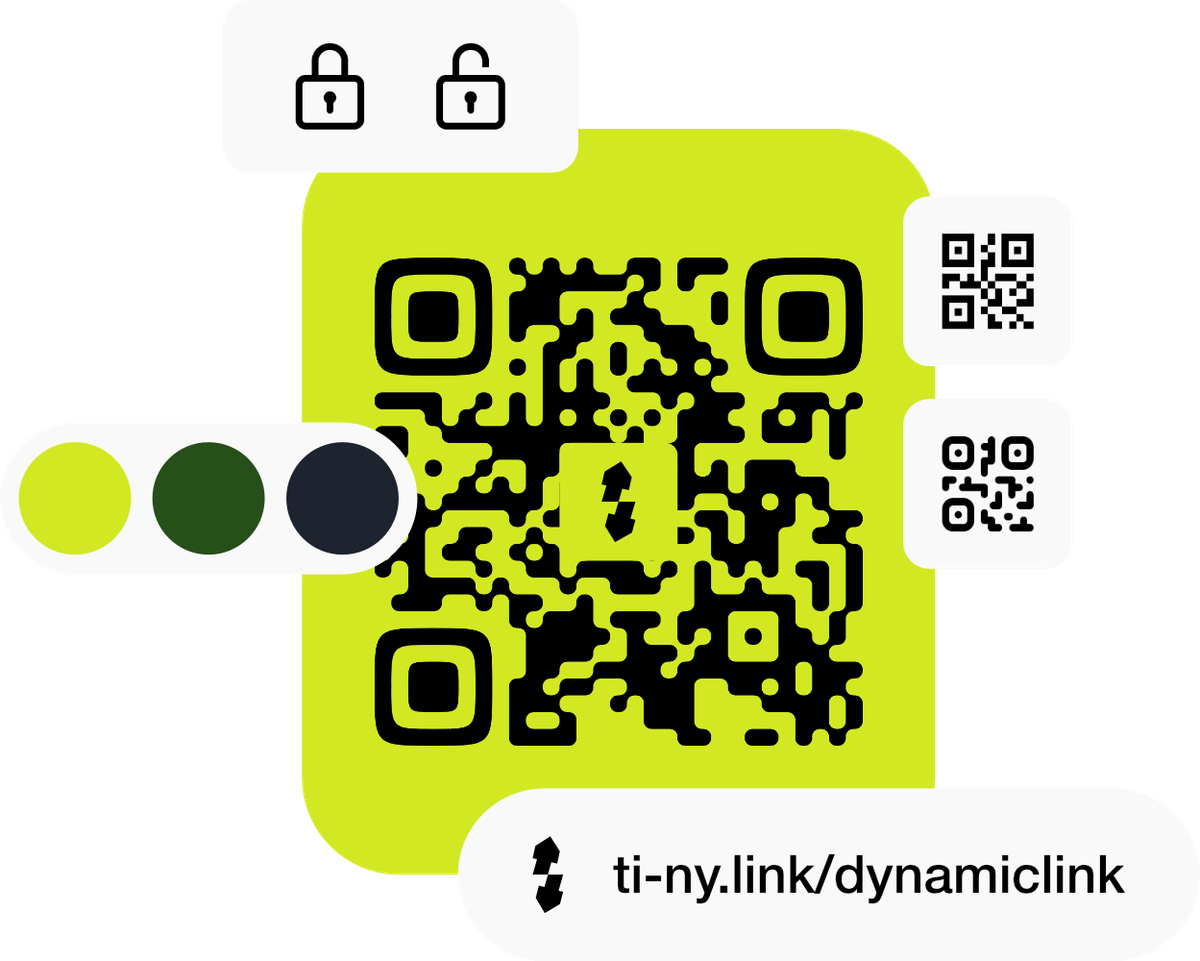
A new destination. The same printed code.
Bridge the gap
Give people a way to reach your online content from something they can hold, see or visit.
Keep it current
Connect a dynamic QR code to a short link. Update the destination behind that link instead of changing your printed materials.
Take it with you
Download options include SVG, PNG, JPG and WEBP. Choose the format your designer or printer needs, then test the final output.
Today’s menu. Next month’s event.
Your QR code can stay in place as your content evolves. Before printing, scan the exported code on the devices your audience will use and check the destination at the final print size.
Start with something simple.
- Create a short link to the page you want to share.
- Create a dynamic QR code connected to that link.
- Download, scan-test, then print or share.
SEE HOW IT WORKS
Connect a link. Make a code. Test the result.
Use a pre-existing short link for the QR code so you can test its destination and redirect settings before preparing the artwork.
Connect an existing short link
Open QR codes → Create QR and choose URL. Enable Dynamic QR code and Select from pre-existing links, then select the link you want the code to open.
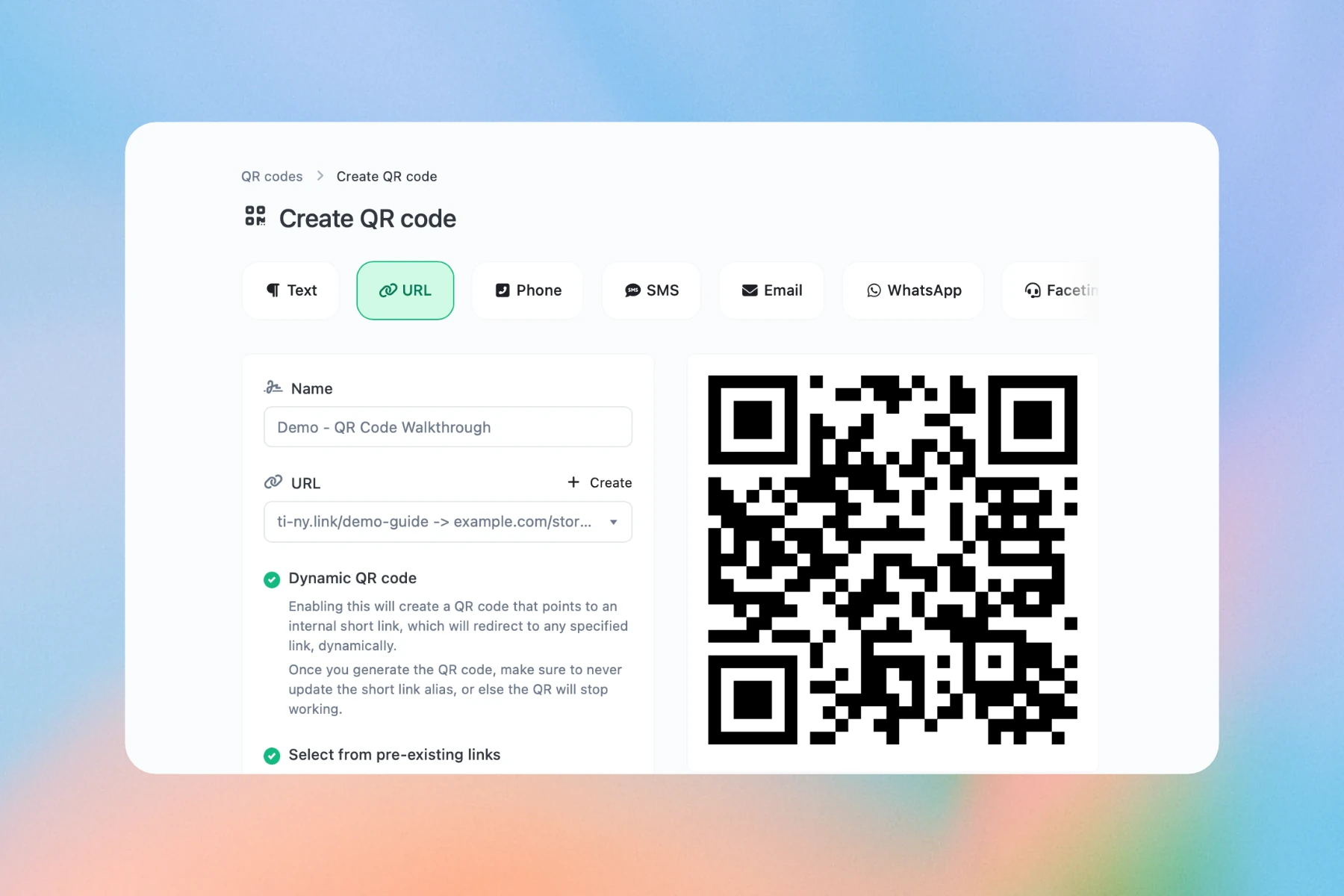
Connect a dynamic QR code to an existing short link. Keep that link’s alias unchanged after printing. Make the artwork clear
Review Style, Colors, Frame, Branding and Options. Keep sufficient contrast and clear space around the code, then save the QR code.
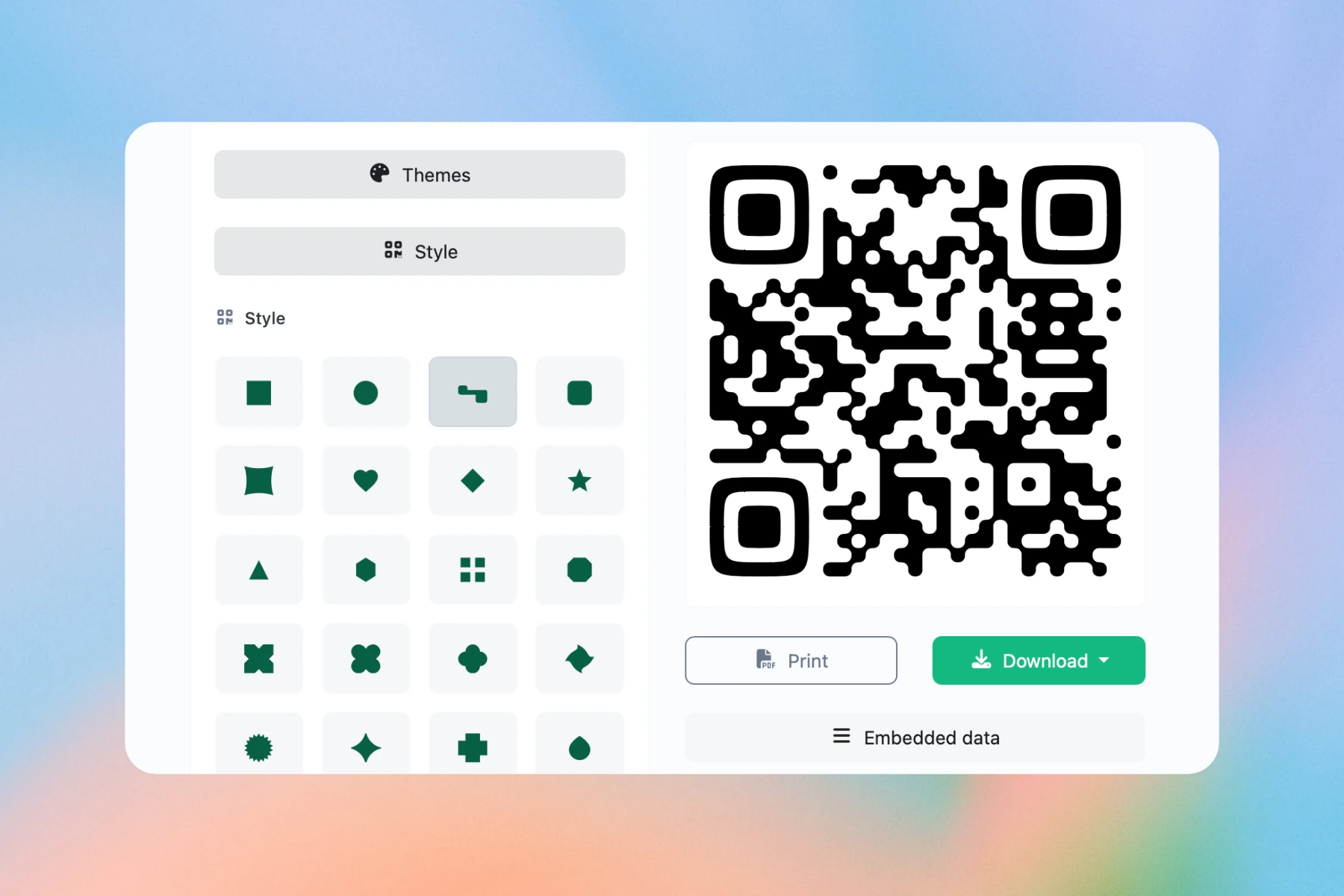
Choose a QR style and review its preview. This example uses rounded patterns; always test the finished design. Download and scan-test
Check Embedded data on the saved QR page. Open Download and choose SVG, PNG, JPG or WEBP. Test the exported file on a real phone and again at its intended print size.
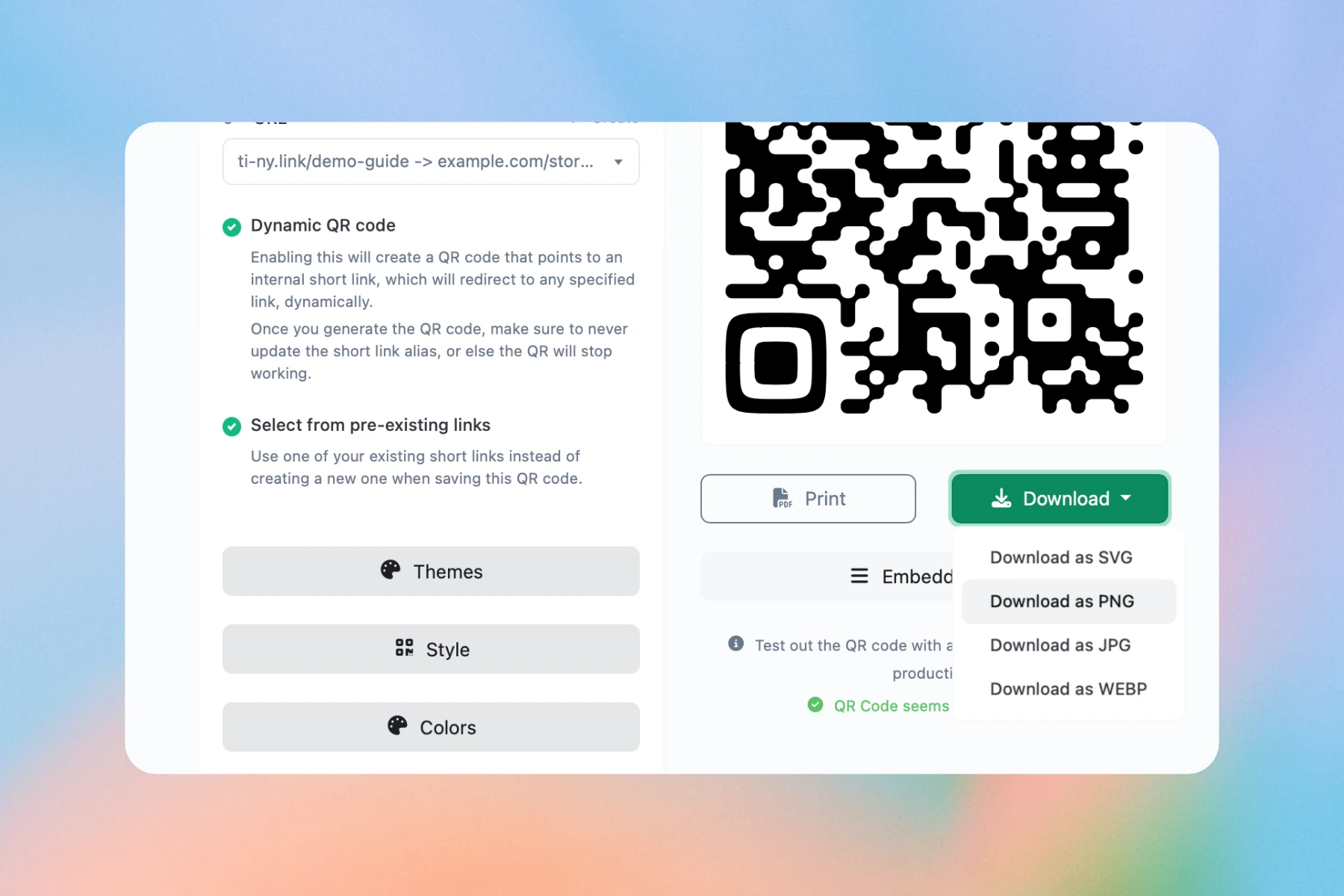
Download your code in SVG, PNG, JPG or WEBP, then scan-test the exported file before printing.
A dynamic QR code keeps the encoded short-link address. Update the destination behind that link and keep its alias unchanged. Always scan-test the exported file and final print.
Frequently asked questions.
What should stay the same after printing?
Keep the short-link alias unchanged and update its destination. Choose a temporary redirect for changing campaigns before printing; returning browsers may retain an earlier permanent redirect.
Which download formats are available?
The QR download menu offers SVG, PNG, JPG and WEBP. Check the exported file and scan-test it before production.
Can I create QR codes in bulk on the Free plan?
The Free plan includes 5 active QR codes and no bulk generation. Deleting an unneeded code frees capacity. Compare a paid plan’s separate bulk allowance before a larger rollout.
Put it into practice: Build an editable QR campaign →
Get started free.
Create dynamic links, bio pages and QR codes in one place.