
Share the actual destination
Send listeners to a track, viewers to a video, or visitors to a map using a supported destination URL.
For creators, musicians and local businesses
Share supported Spotify, YouTube, WhatsApp and Google Maps destinations with app-aware links. Enable mobile app opening, then test the journey on the devices your audience uses.
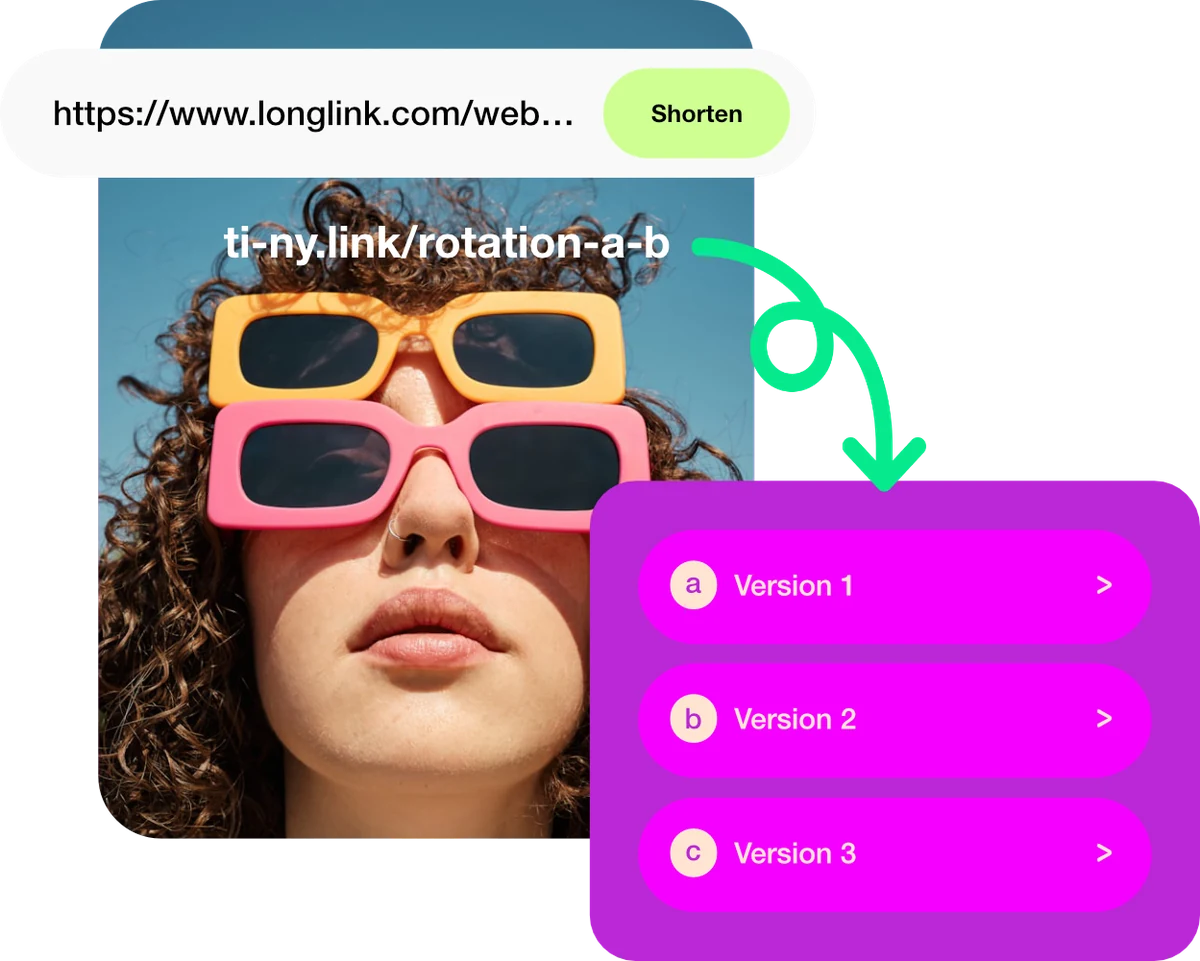
Send listeners to a track, viewers to a video, or visitors to a map using a supported destination URL.
Put the app-aware short link in an email or message, or connect it to a QR code on physical material.
Use a destination that also makes sense in a browser. App opening depends on compatibility and the visitor’s environment.
Illustrative destinations · follow the URL guide
A musician can share a Spotify track from a gig poster. A venue can send guests to its Maps listing. A business can link to a WhatsApp conversation. Choose the supported URL structure for the task.
These are URL patterns, not working links. Follow the complete integration guide and test your real destination before sharing.
Use the track URL for the release you are sharing.
Use the video’s destination URL.
Use the supported phone-number URL structure.
Use the supported place URL from the integration guide.
Illustrative examples. These addresses are not live campaign links.
Make it happen
Start with a useful destination. Build the route to it, then check the experience your visitors will get.
Copy the real content URL from the service you want to share. Match it to a supported structure in the app-integration guide; an unsupported structure uses a standard browser redirect.
Check supported URL patternsCreate a short link to that destination. Open its settings if you want to give it a memorable alias that you can reuse in your campaign.
Follow the quickstartAfter creating the link, open App linking, enable Auto open app on mobile and choose Update. Check for a destination compatibility warning before sharing.
Read the app-opening guideOpen the public short link on iOS, Android and desktop. Test with and without the app installed, and from the browsers or social apps your audience uses. Check where the browser route lands too.
Review the dynamic-link guideShare the link directly or connect it to a dynamic QR code. Scan the exported code before printing. Review link activity to understand visits; it does not confirm that every visitor opened the app.
Connect a QR codeChoose what fits
Auto open app on mobile is included on Free and paid plans. Test the supported destination and web fallback on the devices your audience uses. Custom-domain and active-resource limits vary by plan.
The URL, operating system, installed app and browser can affect the result. A supported URL is the starting point, not a guarantee that an app will open for every visitor.
Device, country and language targeting can route visitors to different URLs. Configure and test those rules separately from Auto open app on mobile, including the default destination.
Find your fit
Look at the complete workflow: supported app destinations, editable links, QR sharing and campaign controls. Use a real destination to check the experience before moving a campaign.
Good questions
No. App opening depends on the supported URL pattern, the device, installed app and browser behaviour. Some journeys will stay in a browser. Test the devices and sharing contexts that matter to your audience.
The ti-ny.link integration guide states that an unsupported destination structure falls back to a standard browser redirect. Use a real, accessible destination and verify that browser experience as well as mobile app opening.
Yes. Connect the QR code to the configured dynamic link, then test the exported code on phones. The same device and browser conditions still apply when someone scans a code.
No. Auto open app on mobile handles supported app destinations. Targeting rules can send different audiences to different URLs. They are separate settings, and each route needs testing.
Reviewed 4 October 2026. Features and plan limits can change; check the linked product guides and current account details.
Create dynamic links, bio pages and QR codes in one place.