01 /
Give placements a structure
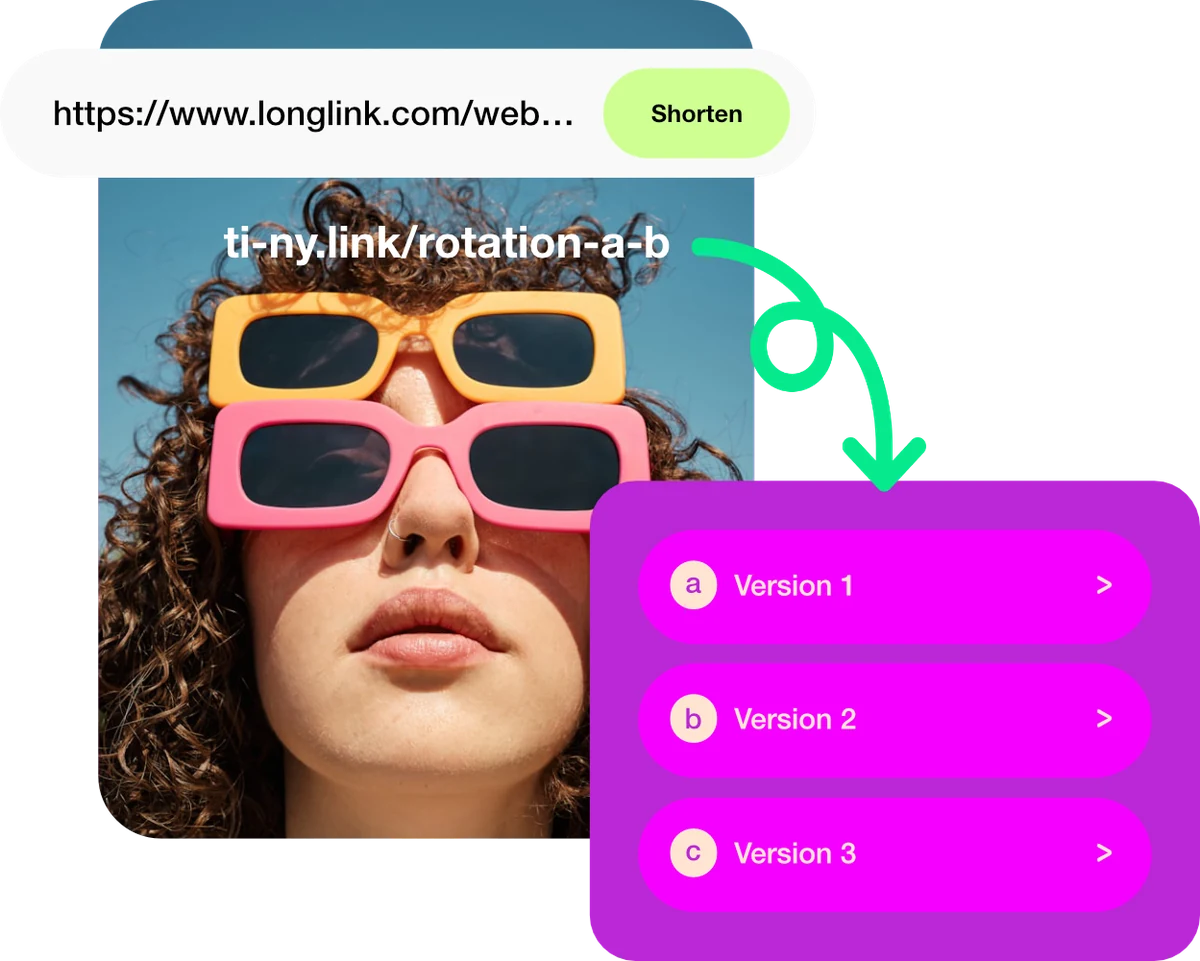
Create distinct links for social, email and print. Choose clear aliases and add UTM parameters to your destinations for campaign context.
Explore dynamic linksFor marketing agencies & campaign teams
Launch campaigns with dynamic links, QR codes and analytics in one platform. Keep destinations current and compare available activity across placements.
Create. Share. Connect.
Start with what you’re sharing.
Choose the tools that make it easier to reach.
Create distinct links for social, email and print. Choose clear aliases and add UTM parameters to your destinations for campaign context.
Explore dynamic linksUse memorable aliases and connect your own domain on an eligible plan. Check the plan’s domain allowance before adding multiple brands.
Explore custom domainsPoint a dynamic QR code to a short link so its destination can be updated after the creative is printed.
Explore qr codesInspect link visits and available referral context. Compare placements over the same date range and pair this with your destination analytics.
Explore analyticsKeep your links working for you
A campaign rarely stands still. Edit the destination behind a shared short link as you move from teaser to launch. Keep the alias unchanged and check the redirected page after each update.
Explore dynamic linksGet started in three steps
Choose a destination, naming convention and UTM values for each channel.
Create the short links, confirm each redirect and scan-test exported QR codes.
Review link activity and adjust destinations as the campaign progresses.
Compare link and QR allowances, custom domains and statistics history against your campaign needs. For multiple brands, check the domain limits and account workflow before committing.
A plan you can use
Use a distinct short link for each placement, with one campaign name across email, social and print.
This setup uses the client’s existing campaign landing page. Replace the sample URL and agree who maintains the destinations before launch.
| Placement | Sample alias | Destination | Campaign tagging | QR? |
|---|---|---|---|---|
| Newsletter | spring-email | https://example.org/spring |
| No |
| Instagram profile | spring-social | https://example.org/spring |
| No |
| Shop poster | spring-poster | https://example.org/spring |
| Dynamic |
Sample aliases are not reserved. Replace the example.org destinations and choose available aliases. The CSV is a planning worksheet; it does not create resources in your account. Counts assume each QR code uses one of the existing short links above. Check your plan allowances.
Compare each placement over the same dates. Use the destination’s analytics to connect campaign parameters with enquiries or purchases.
Compare recorded visits, not guaranteed people or conversions. QR activity can include other visits to the same short link. UTM values reach the destination; onward links may need their own tagging.
Understand the statisticsAlready sharing links elsewhere? Plan your move to ti-ny.link before replacing live links or printed codes.
Custom domains are available on eligible plans. You’ll need control of the domain’s DNS to complete setup. Review the current domain allowance and setup documentation before planning a branded rollout.
Compare the number of custom domains, links and QR codes you’ll need, together with statistics history. Try the account workflow with a sample campaign to check that it fits how your team organizes work across brands.
Yes. Open UTM Parameters in the link’s settings, enter Source, Medium and Campaign, then choose Update. Use a consistent campaign naming approach and check the final redirected URL after saving.
No. Link statistics show activity at the link. Measure completed purchases, enquiries or signups with the analytics on the destination and use campaign parameters to connect the context.
Link Everything. Launch Anything.