Links and content
- Link
- Heading
- Paragraph
- Image
Introduce your work and give visitors a clear next step. Use meaningful button labels and image descriptions.
Bring your work, releases, offers and social profiles together on a customizable bio page. Share one link in bio and keep the page current as you grow.
Get started free ↗Read the bio-page setup guide →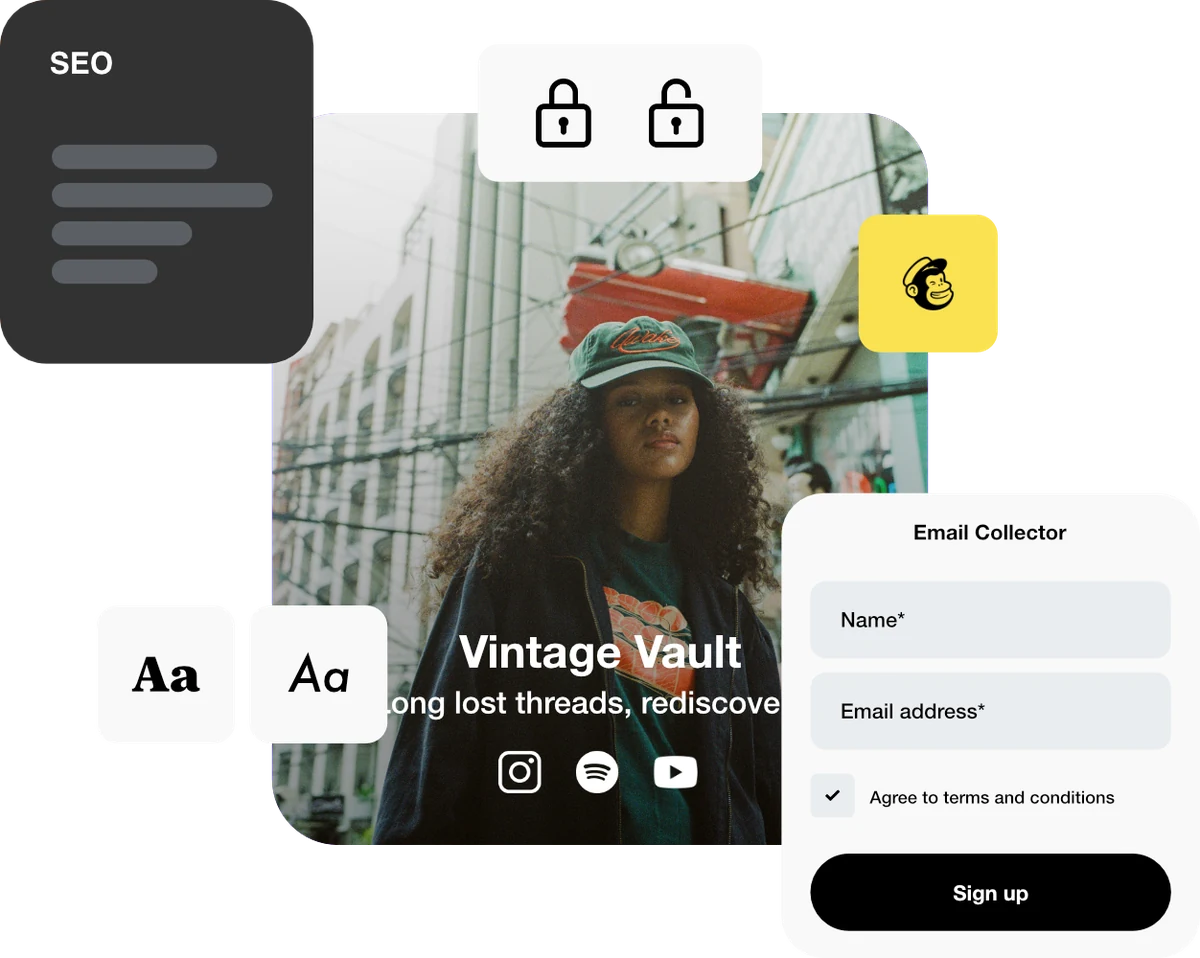
Make a useful first stop for people discovering your work. Add a heading and links to the places that matter.
Move your new launch or latest project into focus by editing your page as your priorities change.
Use your bio-page URL in a social profile, message or email signature. Open the public page to check every button.
Start with a clear heading and one useful link. Add more when you need them. Save block edits with Update, then verify the public page.
SEE HOW IT WORKS
Choose an address, build with blocks and check the page your visitors will see. Follow the NOVA creator demo from creation to its public-page preview.
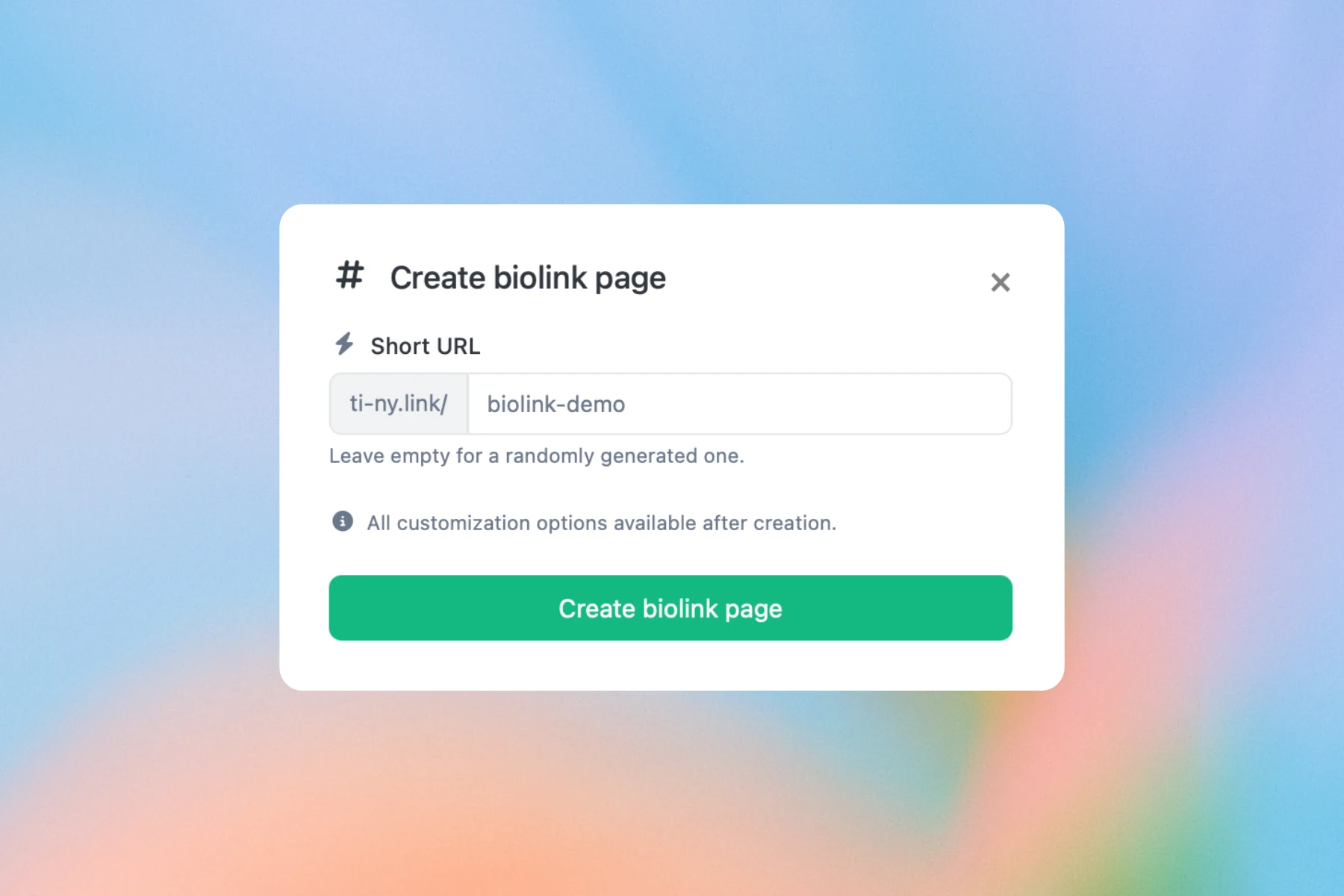
Open the bio-page creation controls and choose an available alias. Use an address you can keep as your content changes, and check your page allowance before creating another page.
Open Blocks and add a heading, link or other useful content. Edit each block and save it with Update. Page-wide settings have a separate Update button.
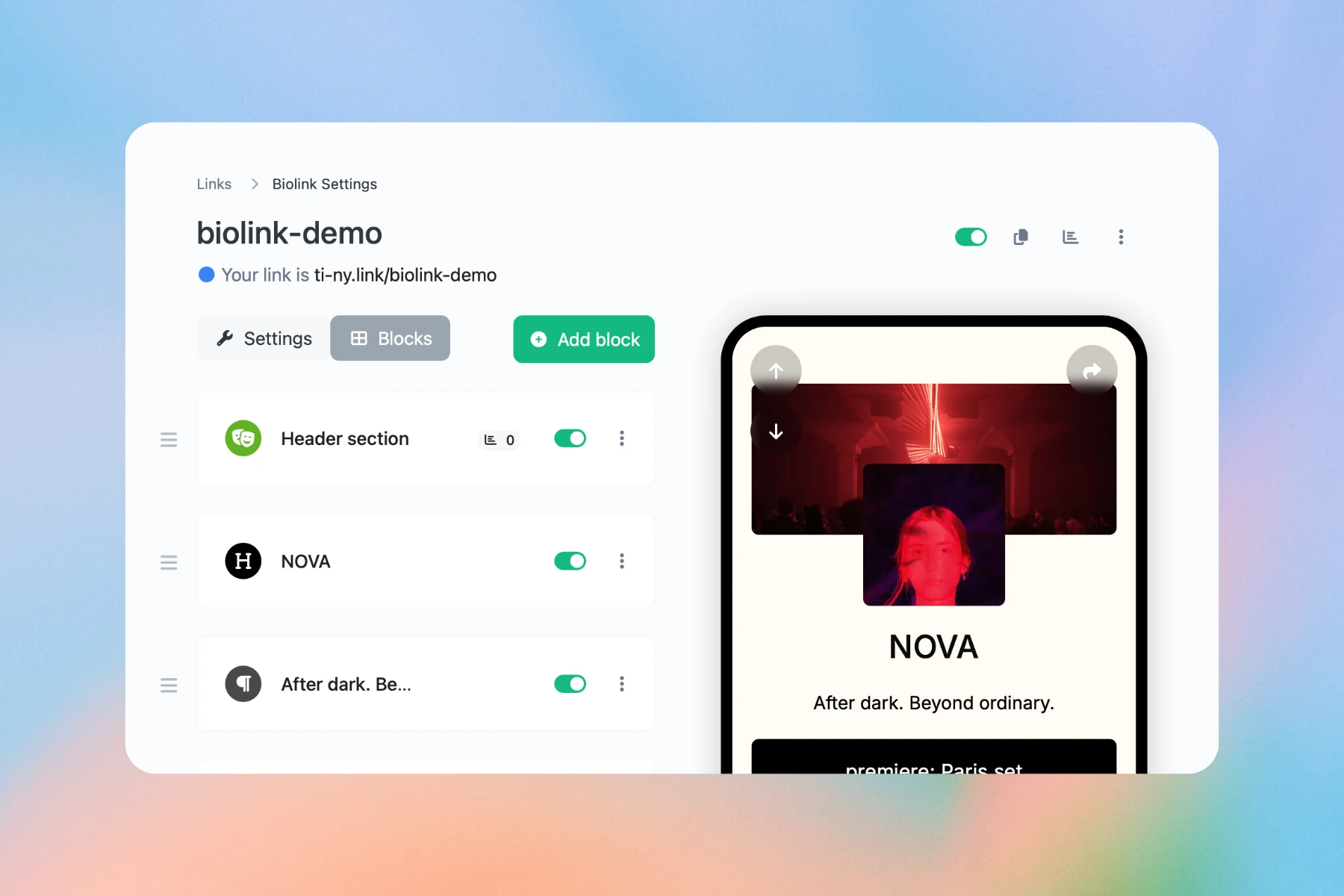
Open the public address and test every button. Check the page on a phone before adding its address to your social profile, email signature or QR code.
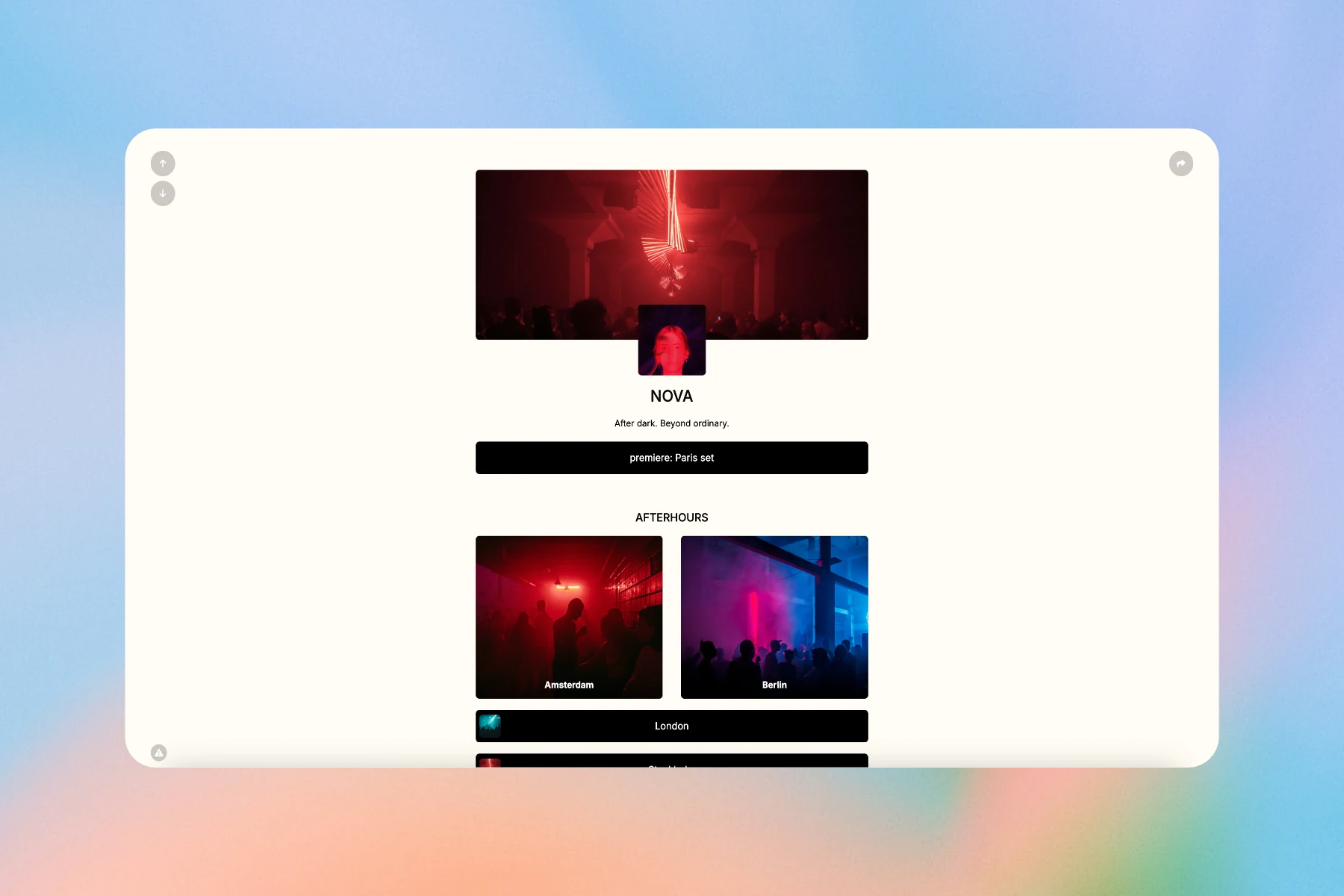
NOVA is an example creator page. Choose your own available alias and test every link before sharing. Page and block allowances depend on your plan.
BUILD WITH BLOCKS
Start with the essentials, then add the content your visitors need. Here is a selection from the bio-page block catalogue.
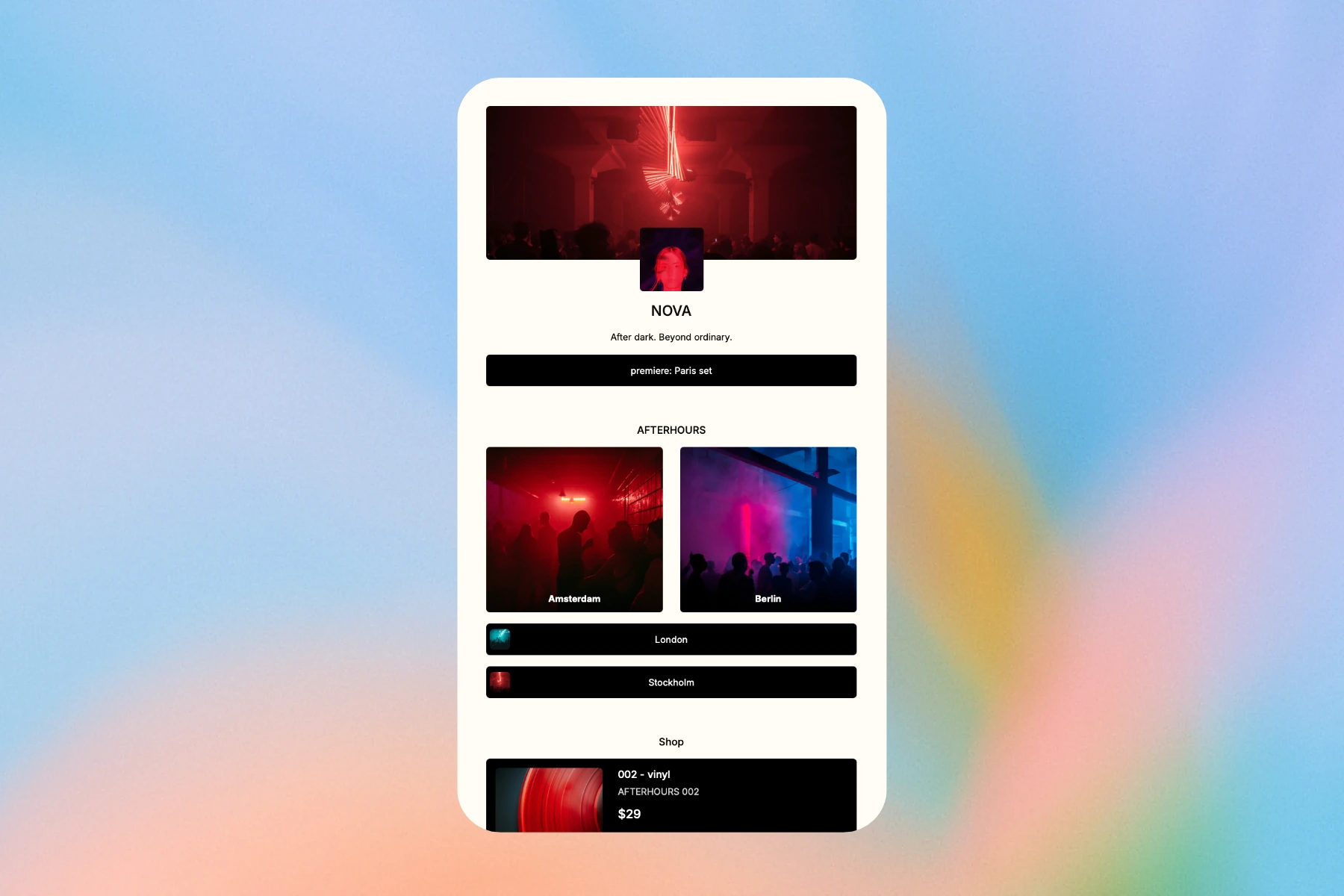
Introduce your work and give visitors a clear next step. Use meaningful button labels and image descriptions.
Bring supported media onto the page. The source must permit embedding; check playback on the public page.
Give people a way to get in touch. Review the collection and delivery settings, then test the form before sharing.
Keep opening hours, useful downloads and contact details together. Check that each file and detail is current.
Connect an available calendar or booking integration. Provider accounts and settings may be required; test the complete booking journey.
Choose blocks that serve your page’s purpose. Check plan allowances, block settings and external-provider requirements before building a workflow around them. Adding a form, embed or payment button does not confirm that a transaction has completed.
No. You can create a hosted bio page, add blocks and share its public URL without building a separate website.
Save edits with the block’s Update button. Page-wide settings have their own Update button. Open the public bio page after saving and test its links.
All plans include the block types; block quantities and design options vary by plan. The bio-page blocks guide explains the catalogue and any external-provider requirements.
Put it into practice: Give each project its own bio page →
Create dynamic links, bio pages and QR codes in one place.